Tutorial
Get identity verified
Verify your phone, then finish card payment setup or send your ID, to move from "New seller" to "Identity verified".
"Identity verified" needs three things: a confirmed email (done when you signed up), a verified phone number, and either card payments set up or an ID check by PerfectPal staff.
Everything here is under Settings › Verification.
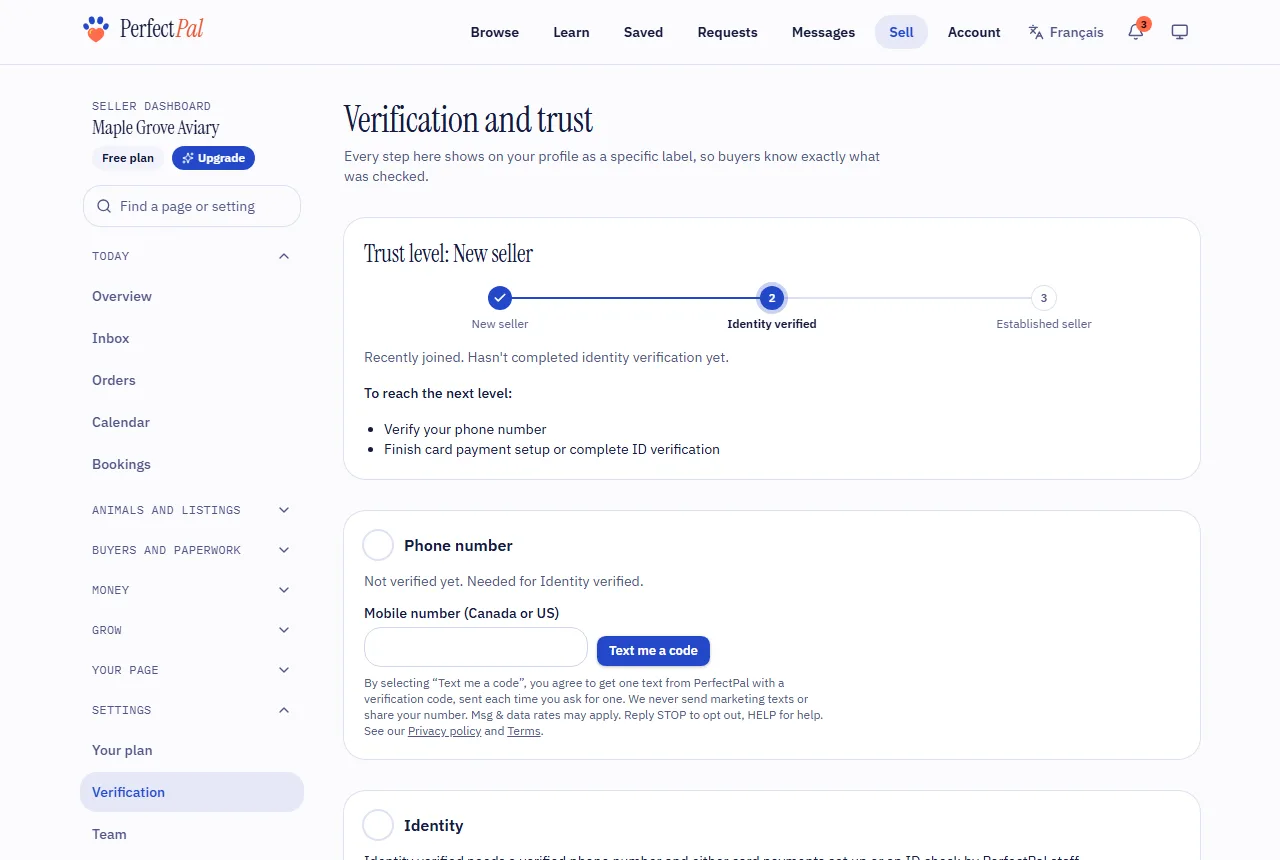
1. Verify your phone
- Under Phone number, enter a Canadian or US mobile number.
- Choose Text me a code. A 6-digit code arrives by text; it expires in 10 minutes.
- Enter it and choose Verify.
PerfectPal sends only the verification text, never marketing, and never shows your number to buyers.
2. Confirm your identity
Choose one:
- Set up card payments with Stripe, which checks who you are. See Connect Stripe to take card payments.
- Ask staff to check your ID: upload a clear photo or scan of a government-issued photo ID and choose Send for review. Only PerfectPal staff see it, and it's deleted a set number of days after the review (the page says how many). You're emailed when it's decided.
3. Check your level
The top of the Verification page shows your Trust level and, under To reach the next level, anything still missing. Your label updates by itself. See Trust levels and labels.
Next: badges
Badges show buyers what staff have checked against your documents, like breeder credentials or health testing. See Badges explained.
Updated October 19, 2026
Was this helpful?
Still need help?
PerfectPal staff read every message. Tell us what you were trying to do and what happened.
- Badges explainedWhat verification badges are, how to apply, renewals, and the "Verified breeder" mark.
- PermitsList species that need a permit where you live, once staff approve your permit for those species.
- Video checksWhen staff book a video call to check your facility for a badge, and how to join it.
- ReviewsHow reviews work after a sale: both sides review, they're revealed together, and buyers may add a follow-up later.