Tutorial
Connect Stripe to take card payments
Set up card payments so buyers can pay deposits, balances and buy-now orders straight into your own Stripe account.
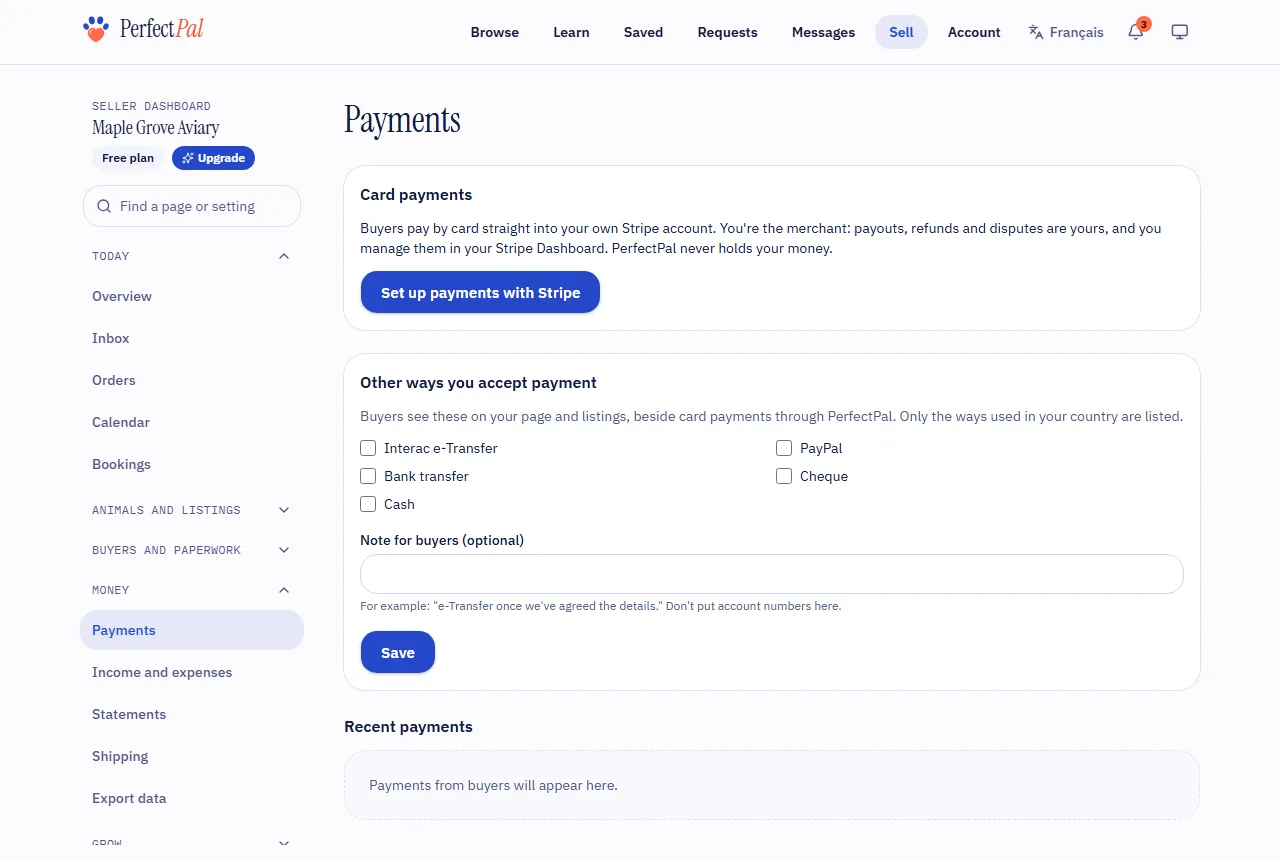
Buyers pay by card straight into your own Stripe account. You're the merchant: payouts, refunds and disputes are yours, and you manage them in your Stripe Dashboard. PerfectPal never holds your money.
Only the account owner can set this up (team members can't).
Steps
- In the dashboard menu, open Money › Payments.
- Under Card payments, choose Set up payments with Stripe.
- Stripe asks for your details: who you are, your business (an individual is fine), and the bank account for payouts. Have your ID and bank details ready.
- When you finish, Stripe sends you back to PerfectPal. Card payments shows Active once Stripe has checked everything, which can take a few minutes.
If the page says Stripe needs more information, choose Continue setup with Stripe and finish what's missing. Stripe sometimes asks for more later, for example after your first payouts.
What setting up gives you
- Buy now on stock listings, and Request a payment on requests, paid by card.
- One of the steps to Identity verified (with a verified phone). See Trust levels and labels.
- Your page shows buyers that card payments are available.
Payments are in Canadian dollars for sellers in Canada and US dollars for sellers in the United States.
Getting paid
Stripe pays out to your bank on its own schedule. Choose Open your Stripe Dashboard on the Payments page to see payouts, change your bank account, or answer a dispute.
Protect your account
Since money goes through your account, turn on two-step sign-in. See Two-step sign-in.
Updated October 19, 2026
Was this helpful?
Still need help?
PerfectPal staff read every message. Tell us what you were trying to do and what happened.
- Refund termsSay what you keep if a buyer backs out, in plain terms buyers accept before paying.
- Refund a paymentRefund all or part of a card payment on a request or an order, and what happens to the fees.
- PerfectPal's feesHow PerfectPal's fees on card payments work, who pays them, and where to see the current amounts.
- Let buyers pay in fullLet buyers pay the whole price by card themselves once you've approved or matched their request.
- Ask buyers for a phone or ID check before they payRequire a verified phone, or an ID checked by PerfectPal, before a buyer's first card payment on a request.