Tutorial
Handle a request
Read an application or inquiry, reply, and move it from Sent to Completed.
Applications and inquiries from buyers arrive as requests in Today › Inbox. You're emailed about each new one (or once a day, if you chose a daily digest), and your dashboard's overview counts the ones waiting.
1. Open it
In the inbox, filter by type (applications or questions) and status, then open a request. You'll see:
- the buyer's card: when they joined, completed purchases, kept visits or pickups, and any checks they've done ("Phone verified", "ID checked by PerfectPal");
- their Answers to your form;
- the messages between you;
- Private notes, which only you and your team see;
- the History of everything that happened.
2. Reply
Write in the message box. Saved replies inserts an answer you send often (see Request forms and saved replies). Replying within a day keeps your response rate up.
3. Move it along
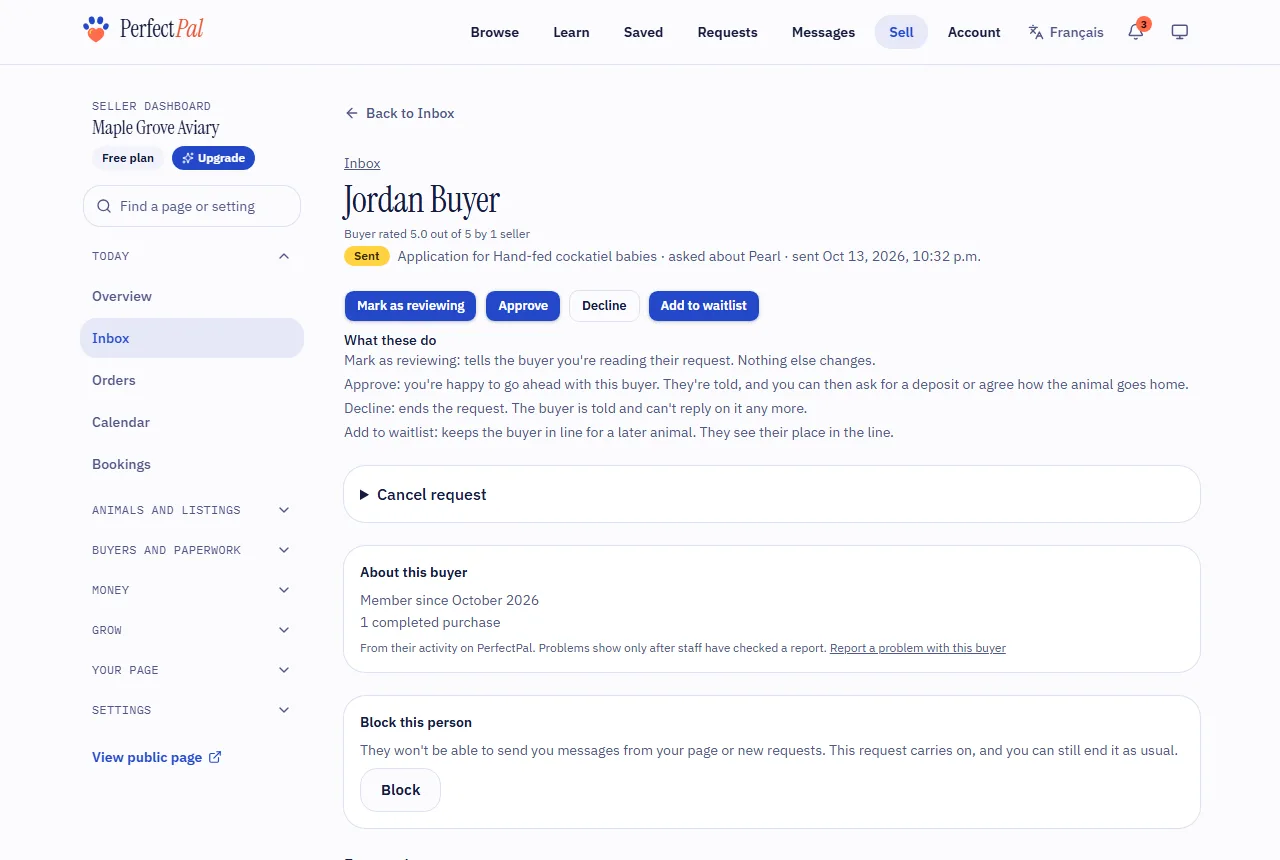
Under Update status, each button says what it does:
- Mark as reviewing: tells the buyer you're reading their request. Nothing else changes.
- Approve: you're happy to go ahead. They're told, and you can then ask for a deposit or agree how the animal goes home.
- Decline: ends the request. The buyer is told and can't reply on it any more.
- Add to waitlist: keeps the buyer in line for a later animal. See Waitlists.
- Match: you've chosen the animal for this buyer. A linked animal shows as reserved until the request is completed or cancelled.
- Mark completed: the animal has gone home. The request closes, and you're both asked to leave a review.
4. Payments, contracts and going home
- Request a payment asks for a deposit, the balance, the full price or another amount. See Ask for a deposit or payment. When you ask for a deposit, the request shows Deposit requested and moves on by itself once the buyer pays.
- Send a contract for the buyer to sign online. See Contracts.
- Agree a go-home plan, and let the buyer book a visit, pickup or video call. See Go-home plans, visits and pickups.
- The Go-home packet gathers the animal's records, the terms the buyer accepted and the signed contract for them.
Ending a request early
If the sale is off, choose Cancel request (or Cancel and refund when the buyer has paid). See Cancel a request.
Updated October 19, 2026
Was this helpful?
Still need help?
PerfectPal staff read every message. Tell us what you were trying to do and what happened.
- Conversations with buyersMessages from your page's contact form, and how to turn a conversation into a request.
- Block someoneWhat blocking stops, what carries on, and how to undo it.
- Request forms and saved repliesWrite your own application and inquiry questions, choose which listings use them, and save answers you send often.
- WaitlistsKeep buyers in line for a later animal and change their order.
- Cancel a requestEnd a request with a reason, and choose what to refund when the buyer has paid.