Tutorial
Handle a buy-now order
Get a paid order ready, mark it shipped or ready for pickup, and see it through to completed.
When a buyer pays for a buy-now stock listing (or several from their basket), you get an order. You're emailed, and your dashboard's overview counts paid orders to get ready.
1. Open it
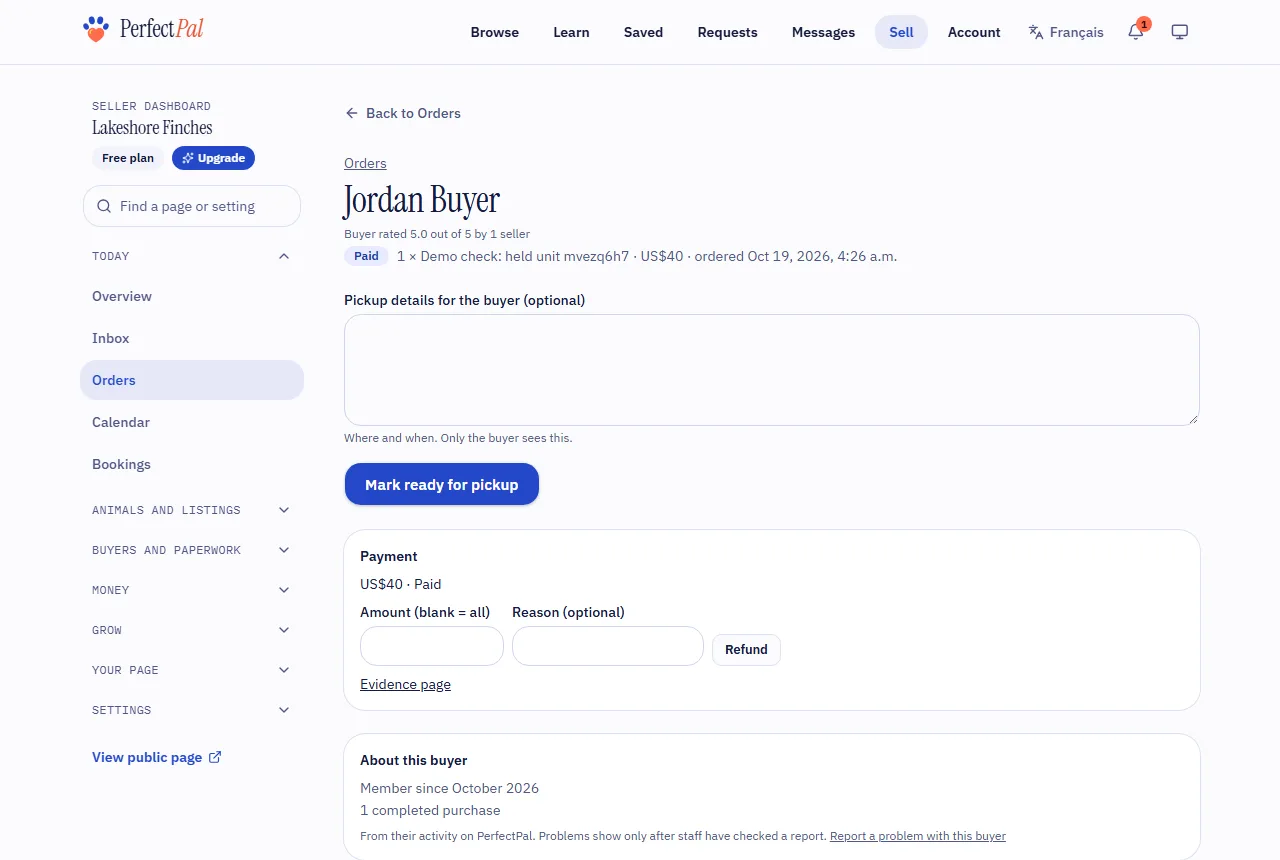
Open Today › Orders and choose the order. It shows what was bought, how the buyer wants it (pickup or shipping, with their address for shipping), the payment and its fee, and the messages with the buyer.
2. Get it to the buyer
For pickup:
- Choose Mark ready for pickup, with Pickup details for the buyer (where and when; only the buyer sees this). The buyer can also book a pickup time if you offer bookings: see Go-home plans, visits and pickups.
- When they've collected it, choose Mark picked up. The order shows Picked up, waiting for confirmation.
For shipping:
- Choose Mark shipped, with the carrier and tracking number if you have them. The buyer is told.
3. Completed
The order completes when the buyer confirms they have it, or by itself after a waiting period set by PerfectPal. Completed orders count as completed sales for your trust level, and you're both asked to leave a review. See When orders complete.
Refunding
Refund on the order sends money back to the buyer's card: blank refunds everything, which ends the order as Refunded. See Refund a payment.
If the buyer reports a problem
The order shows Problem reported. See When a buyer reports a problem with an order.
Updated October 19, 2026
Was this helpful?
Still need help?
PerfectPal staff read every message. Tell us what you were trying to do and what happened.
- When a buyer reports a problem with an orderReply, then resolve it with a refund, a replacement or nothing more to do.
- Shipping and pickupSet shipping rates and ship days for buy-now orders, pause shipping in bad weather, and choose how animals go home.
- When orders completeHow an order moves from paid to completed, and what can hold it.