Tutorial
Invite a team member
Invite someone to help run your seller account, and choose what they can use.
Team members sign in with their own PerfectPal account and see only the areas you choose. What they do is recorded under their name. Only the account owner can manage the team.
Steps
- Open Settings › Team.
- Under Invite someone, enter their email address.
- Under What they can use, tick the areas, or start from Helper (listings, records, requests) or Manager (everything). See Team areas: who can do what.
- Choose Send invitation.
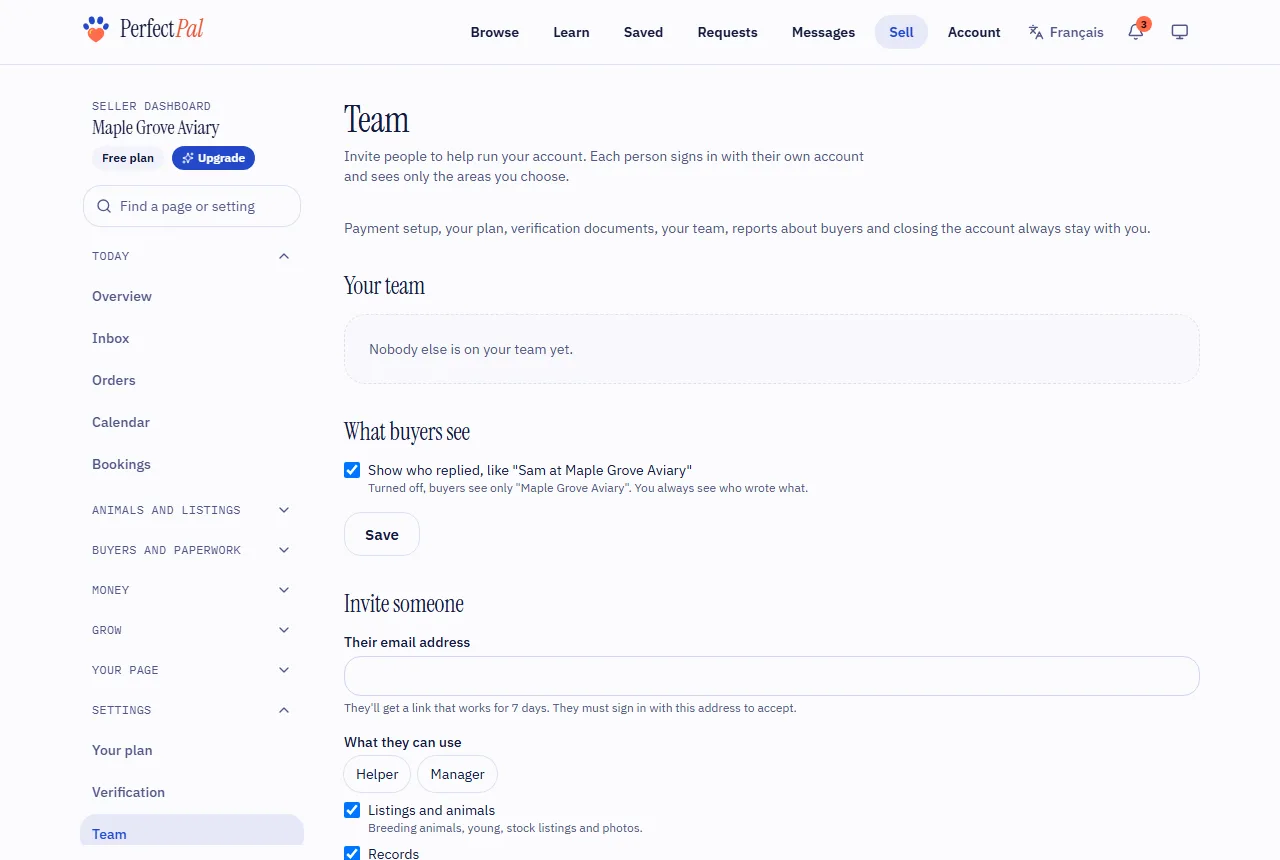
They get an email with a link. It works for a set number of days (the page says how many), and they must sign in with the same email address to accept. If they don't have an account yet, they create one first.
After they join
- They appear under Team members, where you can change their areas and Save, or Remove from team.
- Open invitations lists invitations not yet accepted, with Withdraw.
- Recent team activity shows who replied to what, moved requests, added notes or issued refunds.
What buyers see
Under What buyers see, Show who replied signs team members' messages like "Sam at Your Page Name". Turned off, buyers see only your page's name. You always see who wrote what.
How many team members you can have, including open invitations, depends on your plan.
Updated October 19, 2026
Was this helpful?
Still need help?
PerfectPal staff read every message. Tell us what you were trying to do and what happened.